Video Interview Setup: Zoom, Google Meet, and Teams Checklist
- Andrew C. Lewis
- 02 Oct, 2026
- 02 Mins read
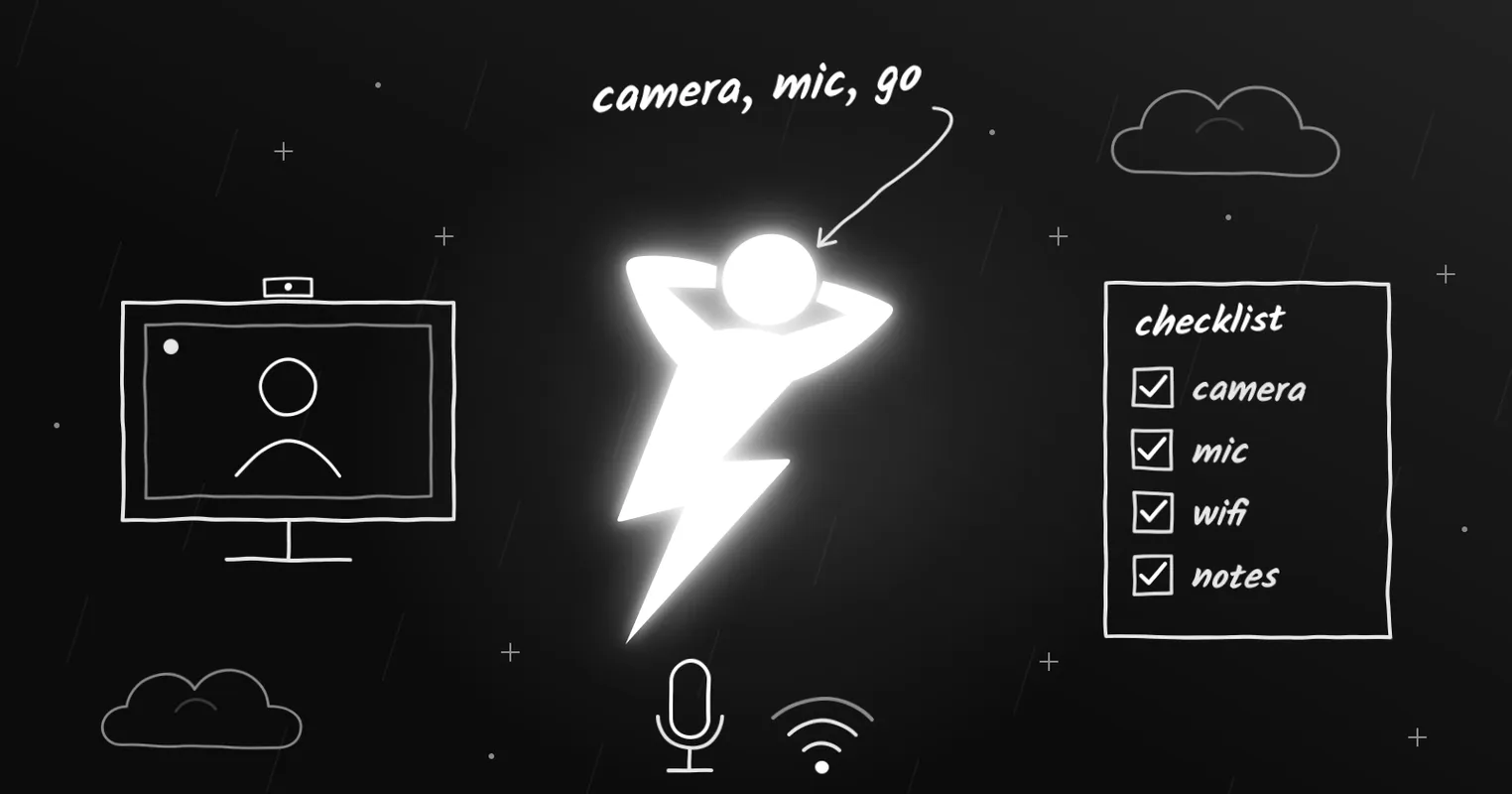
Most first-round interviews now happen on video. A shaky connection, a muted microphone, or a messy screen share can cost you minutes and confidence before the first question. Use this checklist the day before and again 15 minutes before the call.
The day before
Test the exact app
Find out which platform the company uses: Zoom, Google Meet, Microsoft Teams, Webex, or something else. Install the desktop app if there is one, sign in, and start a test meeting. Each app has its own audio and camera settings.
Check your internet
Run a speed test. If your connection is weak, move closer to your router or use a cable. Close apps that use a lot of bandwidth, like cloud backups and video streaming.
Prepare your screen share
Technical interviews often ask you to share your screen. Before the call:
- Close personal tabs, chats, and email.
- Turn off notifications, or turn on “Do Not Disturb”.
- Open the tools you will need, such as an editor or the coding platform link.
- Practice sharing a single window and your whole screen, so you know where the buttons are.
Set up your notes
Have your resume, the job description, and your five prepared stories (see our STAR method guide) where you can see them easily.
Fifteen minutes before
- Restart your computer to clear memory and stuck apps.
- Plug in your laptop.
- Check your camera angle: eyes near the top third of the frame, light in front of you, not behind.
- Check your audio: headphones with a microphone usually sound better than laptop speakers and avoid echo.
- Join two minutes early.
During the call
- Look at the camera when you speak, not only at the screen.
- If the audio cuts out, say so right away. “Sorry, you cut out, could you repeat the last part?” is completely normal.
- When you share your screen, say what you are about to do: “I am going to share my editor now.”
Where InterviewStorm fits
InterviewStorm works next to Zoom, Google Meet, Microsoft Teams, Webex, and Amazon Chime. Live transcription turns each question into text as it is asked, which helps when the audio is unclear or the interviewer has a strong accent. See live transcription.
If you share your screen, the desktop app’s stealth mode keeps the InterviewStorm window out of the shared image. Always test it first in a practice call with a friend. Read how stealth mode works.
Quick checklist
- Right app installed and tested.
- Internet tested, heavy apps closed.
- Notifications off, personal tabs closed.
- Camera at eye level, light in front.
- Headphones with a microphone.
- Resume and job post ready.
- Join two minutes early.