
Font size, transparency, and other settings
Change how the InterviewStorm window looks and find the main settings in the app.
Help Center / Account and privacy
Change how the InterviewStorm window looks and find the main settings in the app.
This article covers how the app window looks and where to find the main settings.
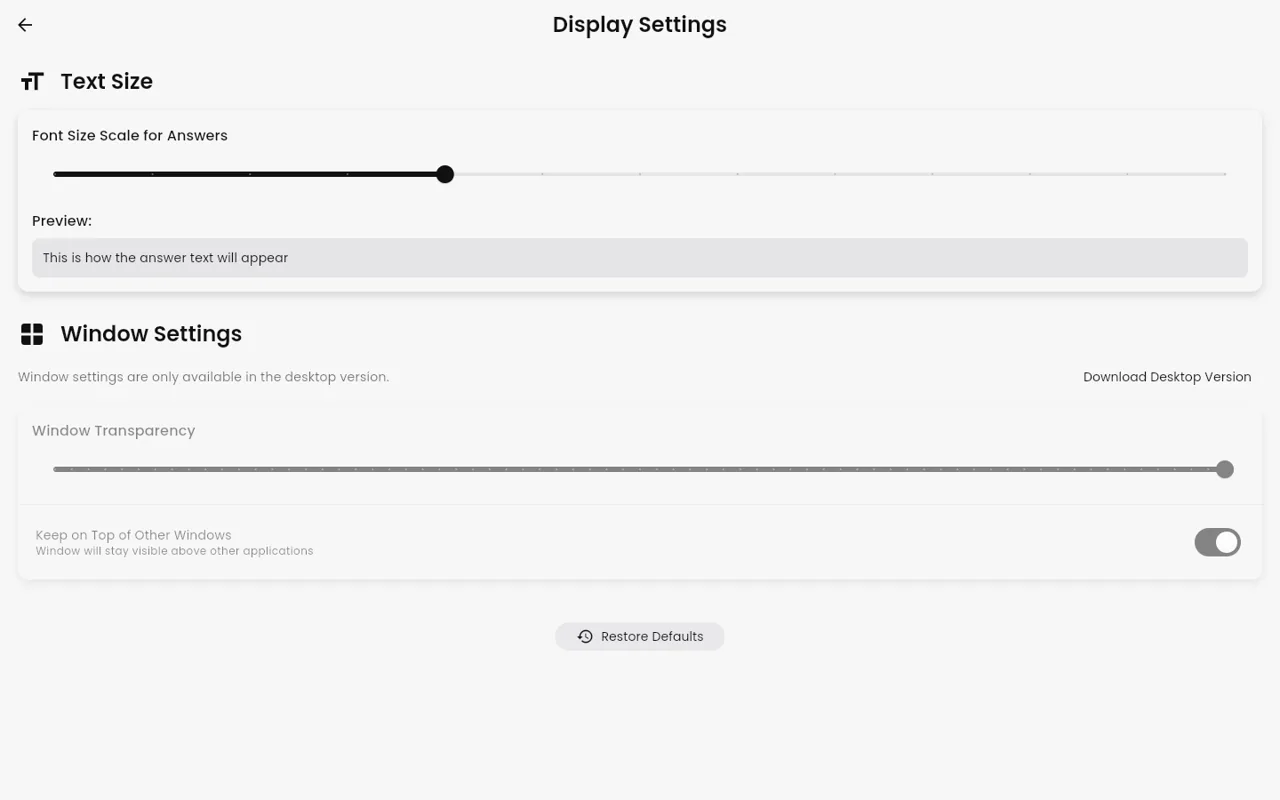
Transparency (desktop app)
The desktop app window can be see-through, so you can see what is behind it.
- Find the “Transparency” slider.
- Move it left or right until you can read the answers easily.
The default is 70%.
Font size
If your version has a font size option, you can find it in Settings. Use it to make answers easier to read.
Window size and position (desktop app)
- Make it small: the window can collapse to a small pill (a small rounded bar). Open it again when you need it.
- Move it: press Ctrl (Windows) or Cmd (Mac) with the arrow keys.
- Click through it: press Ctrl/Cmd+I to turn on mouse pass-through. Your clicks then go to the app behind the window. Press again to turn it off.
- Put it away or bring it back: press Ctrl/Cmd+B.
The window floats above other apps, so it stays in view while you are in a call.
”Transcription” panel
The “Transcription” panel shows the live text of what is said. You can hide it if you only want to see answers.
Other settings in the app
- Answers: length, format, structure, custom instructions. See Change how answers look and sound.
- Languages: see Interview language and answer language.
- Keyboard Shortcuts: see Keyboard shortcuts in the desktop app.
- “Save Interview History”: off by default. See What InterviewStorm stores and what it does not.
- Plan Details: see Buy Unlimited, and what happens after the month.
- “Revisit Onboarding”: run the first-time setup again.
- “Feedback”: sends an email to support with details about your device, so the team can help faster.
Web app
The web app does not have the desktop window options. It has no transparency slider and no keyboard shortcuts. For those, use the desktop app from the download page.
Need help? Email support@interviewstorm.com or use the contact page.