
Your first session, step by step
Start your first InterviewStorm session and get your first suggested answer.
Help Center / Getting started
Start your first InterviewStorm session and get your first suggested answer.
A session is one interview with the app open and listening. Try your first session as practice, before a real interview.
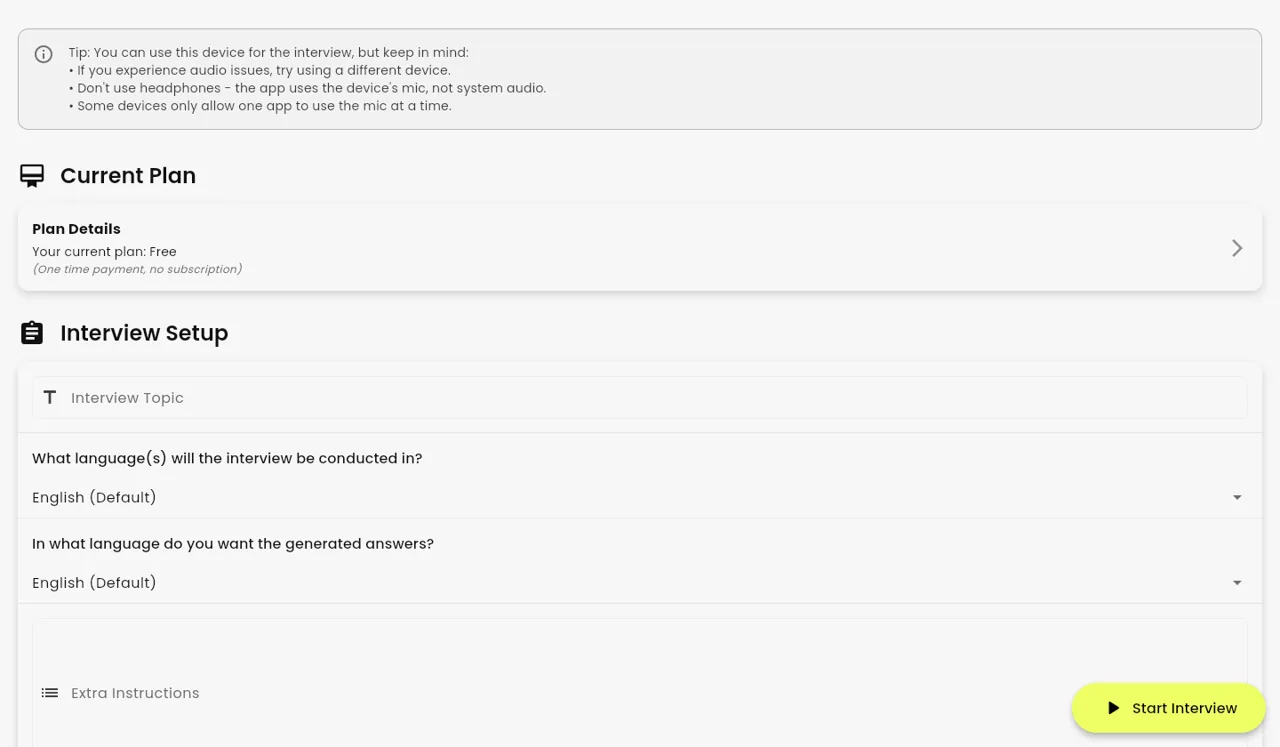
Before you start
- Sign in. See Create your account and sign in.
- Add your resume. See Set up your resume.
- Use headphones only if the app can hear your device audio (the sound coming out of your computer). See Let the app hear the interviewer.
Start the session
- On the Home screen, click “Start Interview”.
- On the free trial, you see how many minutes are left. Click “Continue with N min” to use them, or choose the option to buy Unlimited ($30, paid once, for one month).
- On “Select Mode”, choose “Standard Mode” and click “Start Interview Now”. The other option, “Stealth Mode”, starts the two-device setup. See Use your phone as a second screen.
- If you have two or more resumes, pick the one for this interview.
- If a permission is missing, a “Before we start” check appears. Allow what it asks for.
- The Helper screen opens. This is where answers appear.
Start listening
- Click the Play button. In the desktop app you can also press Ctrl+L (Windows) or Cmd+L (Mac).
- You see: “Ready to assist. Questions will be detected automatically.”
- Let someone ask you a question, or play a video of an interview question.
- The question appears in the “Transcription” panel (the live text of what was said).
- A suggested answer appears, word by word.
If no answer comes, click “Assist”. Or type the question in the box “Ask about your interview…” and click “Assist”.
Useful buttons
- “New Question”: starts fresh and forgets the earlier questions.
- “Screenshot”: captures a coding question on your screen.
- “Assist”: answers right now.
Read more in How questions are detected and answered.
End the session
- Leave the Helper screen.
- The app asks “Close Interview?”.
- Click “Close” to end, or “Stay” to keep going.
On the free trial, the timer counts from your first Play until you leave the Helper screen. So end the session when you finish practicing. See What the free trial includes.
Follow each employer’s interview rules. Do not use InterviewStorm in proctored tests, exams, or anywhere AI help is not allowed.